
Ergonomic Support for 8-Hour Gaming: A Setup Guide
Table of Contents
- Why Ergonomic Support Matters for Long Gaming Sessions
- How to Stop Lower Back Pain During Extended Play
- Setting Up an Ergonomic Desk Setup for Gaming
- Finding the Best Posture for Long Gaming Sessions
- Movement Breaks and Posture Changes
- Choosing the Right Products for Your Setup
- Frequently Asked Questions
Last Updated: October 9, 2026
Why Ergonomic Support Matters for Long Gaming Sessions
Long gaming sessions demand more from your body than most people realise. When you sit for eight hours straight, your spine bears constant pressure. Your neck cranes forward. Your shoulders round inward. Your lower back flattens against the chair.
Ergonomic support for 8 hour gaming isn't a luxury, it's a necessity if you want to play without paying for it with your body. The difference between a well-supported setup and a standard gaming chair is the difference between feeling fresh at hour seven and counting down the minutes until you can stand up.
A proper setup combines the right chair, strategic cushioning, desk positioning, and crucially, movement breaks. Your body needs support, but it also needs change.
This guide walks you through exactly how to build an eight-hour gaming setup that actually works. We'll cover the specific adjustments that prevent back pain, the desk layout that reduces neck strain, and the movement patterns that keep fatigue at bay. By the end, you'll know precisely what to adjust and why.
How to Stop Lower Back Pain During Extended Play
Lower back pain during gaming stems from one primary cause: your lumbar spine loses its natural curve. When you slouch or lean forward, the discs in your lower back absorb pressure they're not designed to handle. After two hours, it aches. After four, it throbs. After eight, it can sideline you for days.
The solution starts with understanding what your lower back actually needs.
Lumbar Support and Spinal Alignment
Your spine has a natural S-curve. The lower section curves inward slightly, this is called lumbar lordosis. When you sit, gravity and poor posture flatten this curve. A proper lumbar support cushion restores it.
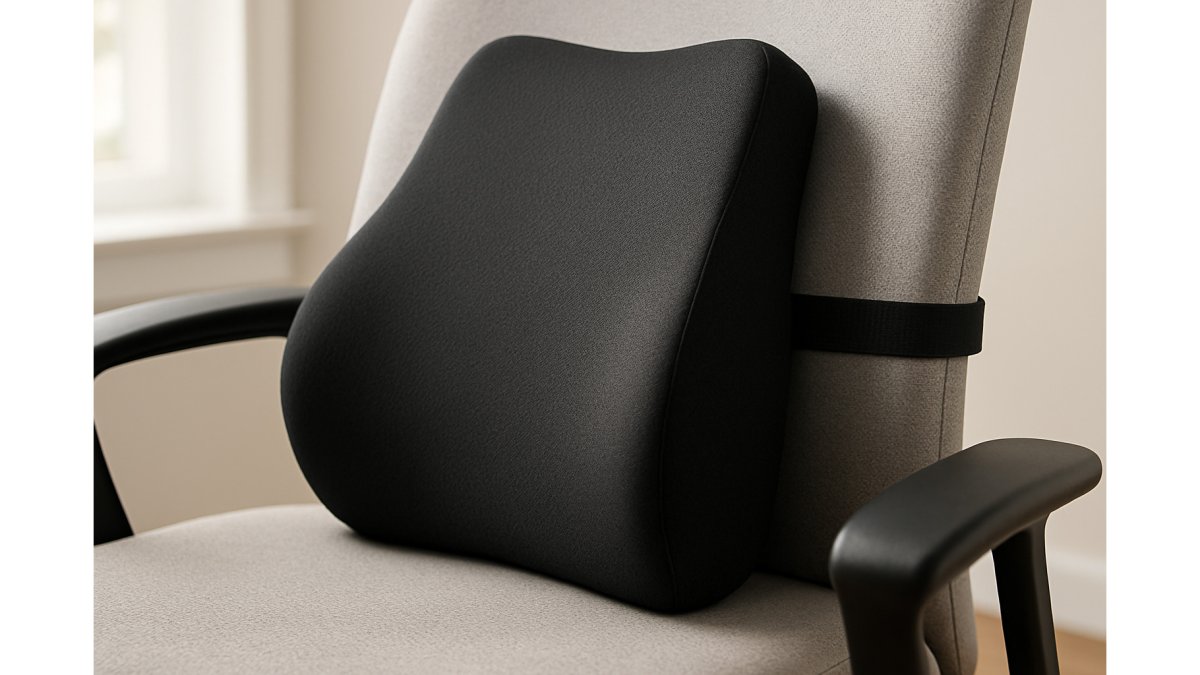
The Memory Foam Lumbar Support Cushion from ElevateSupport is contoured specifically to fit this natural curve. It sits against your lower back and maintains the support your spine needs during extended gaming. The adjustable chair strap keeps it positioned correctly even if you shift or recline, which matters because movement during play is inevitable.

What makes lumbar support effective isn't just the cushion itself, it's the positioning. The support should sit at the level of your lowest ribs, filling the gap between your back and the chair. Too high and it pushes your upper back forward. Too low and it misses the critical lumbar region entirely. Adjust your cushion until it feels like a natural extension of your spine, not an added object pressing against you.
Seat Cushioning and Pressure Relief
Your tailbone and sitting bones bear your entire upper body weight during gaming. After eight hours, the pressure creates pain and numbness. A quality seat cushion redistributes this weight across a larger surface area, reducing the concentrated pressure on these vulnerable points.
The Memory Foam Seat Cushion works alongside lumbar support. Where the lumbar cushion addresses spinal alignment, the seat cushion handles pressure distribution. Memory foam contours to your body shape, supporting your sitting bones while reducing pressure on your tailbone and the soft tissues around it.
The cushion's ergonomic shape is designed specifically for seated gaming. It's not a generic square pad. The contoured design lifts your hips slightly, which naturally encourages better spinal alignment and reduces the forward slouch that happens during intense gaming sessions.
Setting Up an Ergonomic Desk Setup for Gaming
Your chair and cushions matter, but they're only part of the equation. The position of your monitor, keyboard, and mouse determines how your entire body aligns. A poor desk setup forces compensation, your neck cranes forward, your shoulders hunch, your core disengages. These compensations create the neck, shoulder, and back pain that gamers often mistake for a chair problem.
Monitor and Keyboard Placement
Your monitor should sit directly in front of you at eye level. Not slightly below, not slightly to the side, directly in front and at the height where your eyes naturally focus when your head is neutral. This prevents the forward head posture that strains your neck and upper back.
Measure the distance: your monitor should be an arm's length away. If it's closer, you'll lean forward and strain your eyes. If it's farther, you'll crane your neck forward to see clearly. For gaming, where reaction time matters, this distance also keeps your peripheral vision engaged without excessive head movement.
Your keyboard and mouse should be positioned so your elbows sit at roughly 90 degrees when your arms rest at your sides. Your wrists should be neutral, not bent upward or downward.
If your desk is too high or too low, adjustable keyboard trays exist, but the simplest fix is repositioning what you have. Your chair height is the foundation, adjust it first, then position your peripherals relative to your seated position.
Foot Support and Circulation
Your feet seem irrelevant to back pain, but they're not. When your feet dangle or rest partially on the floor, your legs tense to stabilize your posture. This tension travels up through your hips and lower back, creating compensatory strain. A footrest solves this immediately.
The Adjustable Memory Foam Footrest provides a soft, supportive surface for your feet. It's designed to fit under your desk, keeping it out of the way while providing the stability your legs need. The adjustable design, with a removable lower layer, lets you set the height that works for your leg length and desk height.

Proper foot support does two things: it stabilises your lower body, reducing the tension your core must create to keep you upright, and it improves circulation. When your feet are properly supported, blood flow to your legs improves, reducing the numbness and fatigue that comes from extended sitting. This matters more than most guides acknowledge.
Finding the Best Posture for Long Gaming Sessions
Posture isn't a static position you hold for eight hours. That's actually the problem with most posture advice. Your body isn't designed to hold one position indefinitely. The best posture is the next posture, the one you move into after a few minutes in your current one.
That said, there is an optimal baseline posture for gaming.
Seat Height and Spinal Alignment
Your seat height determines everything else. If your seat is too high, your feet dangle and your legs tense. If it's too low, you slouch and your knees rise toward your chest. The correct height is when your feet rest flat on the floor or footrest with your knees at roughly 90 degrees.
From this foundation, your hips should sit slightly higher than your knees. This 5-10 degree angle naturally encourages the slight forward tilt that supports your lumbar curve. Most gamers sit with their hips level with or lower than their knees, which flattens their lumbar spine and creates the lower back pain they experience.
Adjust your chair height first. Everything else, monitor position, keyboard placement, cushion positioning, builds from this one adjustment. Get this wrong and no amount of cushioning fixes it.
Backrest Angle and Reclining Support
A fully upright backrest, 90 degrees perpendicular to the seat, isn't optimal for gaming. A slight recline of 100-110 degrees (about 10-20 degrees back from vertical) reduces the pressure on your lumbar spine while maintaining spinal alignment. This angle is called the "neutral sitting position" and it's where your spine experiences the least stress.
Many gaming chairs offer extreme reclines, 120-180 degrees, which feel comfortable for short periods but actually encourage slouching during extended sessions. You recline so far that your upper back rounds and your head juts forward. The reclining angle should support your spine, not encourage you to collapse into the chair.
If your chair doesn't recline, a small lumbar pillow angled at your lower back can simulate this effect. The key is maintaining that slight backward angle that takes pressure off your discs.
Movement Breaks and Posture Changes
Here's what separates eight-hour gaming sessions that leave you pain-free from ones that leave you sore: movement breaks.
Your body isn't designed to maintain any single position for eight hours. Spinal discs absorb fluid when you're in motion and lose fluid when you're static.
Every 60-90 minutes, stand up. Walk for five minutes. Do light stretching. Specifically, extend your spine backward gently, stand and place your hands on your lower back, then lean backward slightly. This reverses the forward-flexed position you've been in during gaming.
This simple break does more for your comfort during eight-hour sessions than any single product. Movement rehydrates your discs, resets your muscle tension, and resets your proprioception, your body's sense of where it is in space.
During your gaming session, change positions every 30-45 minutes. Recline slightly, then sit upright. Shift your weight from one side to the other. These micro-adjustments prevent the sustained pressure that creates pain. Your body tells you when to move if you listen to it.
Choosing the Right Products for Your Setup
Building an eight-hour gaming setup doesn't require expensive equipment. It requires the right combination of support, positioning, and movement.
The Ultimate Comfort Bundle from ElevateSupport combines the three essentials: lumbar support, seat cushioning, and foot support. At £49.99, it's designed specifically for gamers and office workers who sit for extended periods.

If you're building incrementally, start with the Memory Foam Lumbar Support Cushion (£17.99). Lower back pain is the most common complaint, and lumbar support is the most impactful single intervention.
The memory foam in ElevateSupport's products is high-density, meaning it maintains its shape and support through extended use.
Building ergonomic support for 8 hour gaming is about understanding what your body needs during extended sitting and providing it systematically. A proper setup combines the right chair adjustments, strategic cushioning, desk positioning, and movement breaks.
ElevateSupport's products are designed specifically for this combination. The lumbar support maintains your spinal alignment, the seat cushion redistributes pressure, and the footrest improves circulation, the three factors that separate comfortable eight-hour sessions from painful ones.
NHS guidance on posture and back health
Health and Safety Executive ergonomics guidance for workstations
British Chiropractic Association recommendations for prolonged sitting
Frequently Asked Questions
What is the best way to sit while gaming for 8 hours?
Sit with your back firmly against the chair, feet flat on the floor or footrest, and your monitor at eye level. Keep your shoulders relaxed, elbows at 90 degrees, and maintain the natural curve of your spine. Your hips and knees should both be at roughly 90-degree angles. Use a lumbar support cushion to maintain spinal alignment and reduce strain on your lower back during extended gaming sessions.
How do I prevent lower back pain during long gaming sessions?
Prevent lower back pain by using ergonomic support products like a memory foam lumbar cushion that maintains the natural curve of your spine. Adjust your seat height so your feet rest flat, use a seat cushion to reduce pressure on your tailbone and hips, and position your monitor at eye level to avoid slouching. Take movement breaks every hour, and consider adding a footrest to improve circulation and posture throughout your gaming session.
Does memory foam help with long-term sitting comfort?
Yes, memory foam provides cushioning that contours to your body and helps distribute pressure evenly across your sitting surface. High-density memory foam maintains its support over time. This consistent support reduces fatigue and discomfort during eight-hour gaming sessions and helps prevent pressure points that can lead to back pain and tailbone discomfort.
How often should I take breaks during an 8-hour gaming session?
Take a movement break every 60 minutes during your gaming session. Stand up, stretch your back and shoulders, and walk for 2-3 minutes to improve circulation and reset your posture. These breaks reduce fatigue, prevent stiffness, and give your back muscles a chance to recover from prolonged sitting. Even brief movement helps maintain spinal alignment and prevents the cumulative strain that leads to chronic back pain.