
10 Basic Ergonomic Principles for Comfort
Table of Contents
- What Are Ergonomic Principles?
-
The 10 Basic Ergonomic Principles
- 1. Fit the Work to the Person
- 2. Maintain Neutral Posture and Body Alignment
- 3. Design Tasks to Reduce Repetitive Motion
- 4. Minimise Force and Effort
- 5. Position Equipment Within Easy Reach
- 6. Optimise Working Height and Desk Posture
- 7. Support Natural Movement and Flexibility
- 8. Reduce Workplace Hazards and Risk Factors
- 9. Encourage Regular Breaks and Task Variation
- 10. Involve Workers in Assessment and Improvement
- Five Areas of Ergonomics and Their Application
- Creating an Ergonomic Workstation Setup
- Assessing Your Workspace for Ergonomic Risk
- Frequently Asked Questions
Last Updated: October 11, 2026
What Are Ergonomic Principles?
Ergonomic principles fit the work environment and tasks to the person, rather than forcing people to adapt to unsuitable conditions. When your workspace matches your body's needs, you feel better and perform better.
Ergonomic principles acknowledge that one-size-fits-all workspaces don't work. Your height, arm length, vision range, and physical condition differ from the next person. This approach reduces discomfort, cuts injury risk, and helps you maintain focus during extended work sessions.
The 10 Basic Ergonomic Principles
1. Fit the Work to the Person
Fit the work to the person by adjusting tasks, equipment, and your workspace to match your physical capabilities and limitations, rather than forcing your body to conform to fixed setups.
If you're shorter than average, a standard desk height forces your shoulders upward and strains your neck.
ElevateSupport products like the Adjustable Monitor & Laptop Stand (£11.99) embody this principle by letting you raise your screen to eye level, matching your unique proportions rather than forcing compromise.

2. Maintain Neutral Posture and Body Alignment
Neutral posture means your spine maintains its natural curves without excessive bending, twisting, or reaching. Your head sits over your shoulders, shoulders over hips, and wrists stay straight.
Slouching forward bends your neck 30 to 40 degrees, multiplying the effective weight your cervical spine supports. Neutral posture distributes force evenly across your skeletal system, which is built to handle load efficiently in this position.
Achieving neutral posture requires attention to three zones: head and neck, torso and lower back, and limbs.
3. Design Tasks to Reduce Repetitive Motion
Repetitive motion accumulates strain in tendons, nerves, and muscles. Ergonomic task design breaks up repetitive patterns by varying the motions you perform throughout your day.
Task rotation solves this: alternate between focused typing and different activities like phone calls, reading, or planning. This engages different muscle groups and gives overused tendons recovery time.
Arrange your desk so frequently used items sit closest to you, reducing reach distance. Keep your mouse and keyboard at the same height to avoid twisting your wrist between them.
4. Minimise Force and Effort
Force is the muscular exertion required to perform a task. High force fatigues muscles and strains joints. Ergonomic design reduces unnecessary force, making work feel easier and safer.
A mouse requiring heavy clicking creates finger fatigue; a keyboard positioned too high forces harder arm work; reaching beyond arm's length strains shoulder muscles.
For manual tasks, break heavy lifting into steps: place the box on a waist-height surface first, then move it higher.
5. Position Equipment Within Easy Reach
Your reach envelope is the area your arm can comfortably access without leaning, stretching, or twisting. Ergonomic workstation design places everything you use regularly within arm's reach.
Your keyboard, mouse, phone, and frequently accessed documents should sit within 30 centimetres of your torso. Your monitor sits directly in front of you, not off to one side.
This principle prevents cumulative strain from repeated reaching. Repositioning a mouse 10 centimetres closer eliminates shoulder and neck tension across hours of work.
6. Optimise Working Height and Desk Posture
Working height directly affects posture. If your desk is too high, your shoulders elevate; too low, and you slouch forward. The correct height depends on your body proportions and the task.
For keyboard work, your elbows should bend at roughly 90 degrees with your forearms parallel to the floor.
Most standard desks measure 75 centimetres high, which suits people of average height but not everyone. The Adjustable Memory Foam Footrest (£26.99) supports your feet when a standard chair height leaves them dangling.
7. Support Natural Movement and Flexibility
Static postures create stiffness and reduce blood flow. Ergonomic design encourages natural movement and postural variation throughout the day.
Vary your overall posture throughout the day: sit for a period, stand for a period, walk occasionally. An adjustable chair lets you recline slightly, shift your weight, and change angle without leaving your workspace.
8. Reduce Workplace Hazards and Risk Factors
Workplace hazards include poor lighting, unstable furniture, or environmental extremes. Risk factors include fatigue, poor posture, repetitive motion, high force, or inadequate recovery time.
Ergonomic hazard reduction involves identifying and removing risk factors. Poor lighting causes eye strain; task lighting eliminates this. Unstable chairs create fatigue; a stable, supportive chair removes this risk. Excessive noise increases stress; quieter equipment helps.
A complete ergonomic workstation combines proper desk height, a supportive chair, adequate lighting, and accessible storage, each element removing a different risk factor.
9. Encourage Regular Breaks and Task Variation
Even the most ergonomically perfect workstation causes fatigue without breaks. Your muscles need recovery time, your eyes need rest from screen focus, and your mind needs mental breaks.
The 20-20-20 rule: every 20 minutes, look at something 20 metres away for 20 seconds to relax your eye muscles. Every hour, stand and move for 2 to 3 minutes.
Task variation compounds the benefit. Switching between typing, reading, phone work, and physical tasks engages different muscle groups and prevents overuse of any single area.
Adjustable Monitor & Laptop Stand →
10. Involve Workers in Assessment and Improvement
Ergonomic improvement works best when it includes input from workers themselves. A top-down approach that ignores worker feedback often misses practical solutions.
Ask directly: Where do you feel discomfort? What adjustments have you tried? What would help most? When feedback is implemented, workers engage more fully in maintaining good practices.
You are the expert on your own body. If a recommended setup doesn't feel right, adjust it. Your comfort is the ultimate measure of success.
Five Areas of Ergonomics and Their Application
Cognitive Ergonomics addresses mental workload, attention, and decision-making. A well-organised workspace with clear instructions reduces cognitive load.
Organisational Ergonomics examines work schedules, team structure, and communication patterns.
Environmental Ergonomics covers lighting, temperature, noise, and air quality. Poor lighting causes eye strain; excessive noise increases stress.
Social Ergonomics considers how people interact within the work environment.
All five areas interact. Addressing multiple areas together produces better results than fixing any single factor alone.
Creating an Ergonomic Workstation Setup
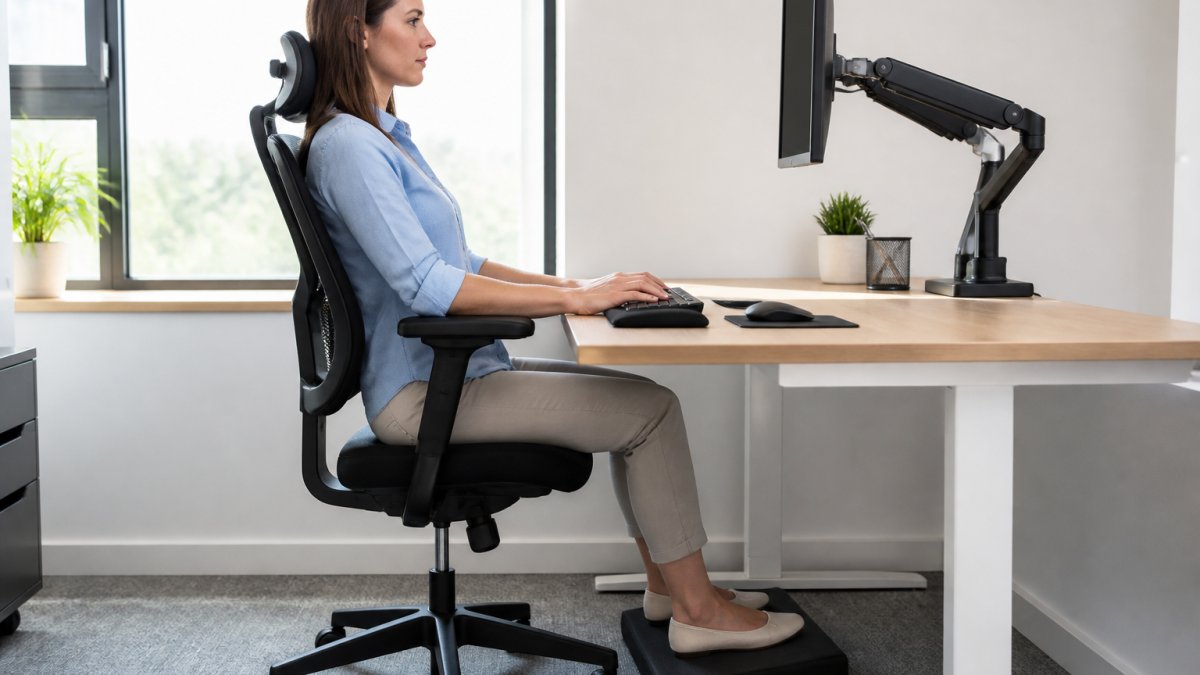
A complete ergonomic workstation integrates multiple elements. Start with your chair, then build outward to desk height, monitor position, and accessories.
Screen Positioning and Eye Level
Your monitor should sit at arm's length away, roughly 50 to 70 centimetres from your eyes.
Positioning the screen too low forces downward head tilt; too high causes upward tilt and eye strain. Too close creates eye fatigue; too far away requires squinting.
Position multiple monitors at similar heights and angles to minimise head rotation.
The Adjustable Monitor & Laptop Stand (£11.99) raises your screen to the correct height, eliminating the need for books or improvised risers.
Chair, Armrest and Footrest Support
Your chair should support your lower back's natural curve (lumbar support), allow your feet to rest flat on the floor or a footrest, and position your hips slightly higher than your knees.
When seated, your feet should rest flat with your knees at roughly 90 degrees. If your feet dangle, the Adjustable Memory Foam Footrest (£26.99) brings them to the correct position.
Armrests should support your elbows at roughly 90 degrees, with your shoulders relaxed. Ergonomic Armrest Cushions (£19.99) transform uncomfortable armrests into supportive surfaces.
Keyboard, Mouse and Wrist Alignment
Your keyboard and mouse should sit at the same height, with your elbows bent at roughly 90 degrees and your wrists straight. This neutral wrist position prevents strain on tendons and nerves.
Position your keyboard directly in front of you. Place your mouse immediately beside your keyboard at the same height to avoid cumulative strain.
The Ergonomic Vertical Wireless Mouse (£19.99) encourages a more natural hand and wrist position by keeping your wrist straighter than a traditional flat mouse.

Assessing Your Workspace for Ergonomic Risk
A self-assessment helps identify which ergonomic principles your current setup violates. Use this checklist to evaluate your workspace:
| Assessment Area | Good Setup | Needs Improvement |
|---|---|---|
| Monitor height and distance | Top of screen at or below eye level; arm's length away | Screen too high, too low, or too close |
| Desk and chair height | Elbows at 90 degrees; feet flat on floor or footrest | Elbows higher or lower than 90 degrees; feet dangling |
| Back support | Chair provides lumbar support; natural spine curves maintained | Chair lacks lumbar support; slouching occurs |
| Armrest height | Elbows supported at 90 degrees; shoulders relaxed | Armrests too high or too low; shoulders elevated or dropped |
| Keyboard and mouse position | At same height; directly in front of you; wrists straight | Off to the side; at different heights; wrists bent |
| Lighting | Bright enough to read without squinting; no glare on screen | Too dim, too bright, or glare on screen |
| Reach distance | Frequently used items within arm's reach | Reaching or twisting to access items |
| Break frequency | Breaks taken every hour; movement throughout day | Sitting for hours without breaks |
| Task variety | Different activities throughout the day | Repetitive motion for extended periods |
For each "Needs Improvement" item, identify the specific adjustment needed. Most ergonomic problems have straightforward solutions.
Start with the highest-impact changes: monitor height and chair support. Once those are correct, address secondary factors like armrest cushioning and wrist support.
Improving your workspace comfort doesn't require replacing all your furniture. ElevateSupport products are designed to solve these exact problems, each one targets a common discomfort point with premium memory foam and thoughtful ergonomic design.

Frequently Asked Questions
What are the 10 basic ergonomic principles?
The 10 basic ergonomic principles are: fit work to the person, maintain neutral posture, reduce repetitive motion, minimise force, position equipment within reach, optimise working height, support natural movement, reduce workplace hazards, encourage breaks and task variation, and involve workers in assessment. Together, they create a people-centred approach to workplace design that reduces injury risk and improves comfort and productivity.
How do I apply ergonomic principles to my desk setup?
Start by positioning your screen at eye level using an adjustable monitor stand (£11.99) to prevent neck strain. Sit with your back against a lumbar support cushion (£17.99) to maintain neutral spine alignment. Place your feet flat on a footrest (£15.99) or adjustable footrest (£26.99) to reduce lower-back pressure. Position your keyboard and mouse close to your body, and use a wrist rest (£13.99) to keep your wrists neutral. Add armrest cushions (£19.99) to reduce elbow and shoulder tension during long sessions.
What are ergonomic hazards at work?
Ergonomic hazards include poor workstation layout, inadequate chair support, screens positioned too high or low, repetitive gripping or typing, excessive force during manual tasks, prolonged static postures, and insufficient breaks. These hazards increase the risk of musculoskeletal disorders affecting the neck, shoulders, back, wrists and hands. Identifying and removing these hazards through proper equipment, task design and worker involvement is central to injury prevention.
What are the five areas of ergonomics?
The five areas of ergonomics are: (1) physical ergonomics, body posture, movement and equipment fit; (2) cognitive ergonomics, mental workload and decision-making; (3) organisational ergonomics, work schedules, team structure and communication; (4) environmental ergonomics, lighting, temperature and noise; and (5) safety ergonomics, hazard identification and risk control. A complete ergonomic approach addresses all five areas to protect worker health and performance.
How often should I take breaks from sitting at a desk?
Most ergonomic guidance recommends a short break every 30 to 60 minutes of continuous sitting. Use breaks to stand, stretch, walk, or change posture. Even brief movement interrupts static loading on your spine and muscles, reducing fatigue and discomfort. If you experience pain or tension, take breaks more frequently. Combining regular breaks with proper workstation setup, including a supportive seat cushion (£16.99) and lumbar cushion (£17.99), significantly improves comfort during long working days.